In an era where digital communication is ubiquitous, safeguarding personal information and ensuring secure conversations is paramount. With the introduction of iOS 17.2, Apple rolled out Contact Key Verification, a feature designed to enhance security in messaging. Let’s explore how to activate and utilize this tool to protect yourself and your contacts from potential threats.
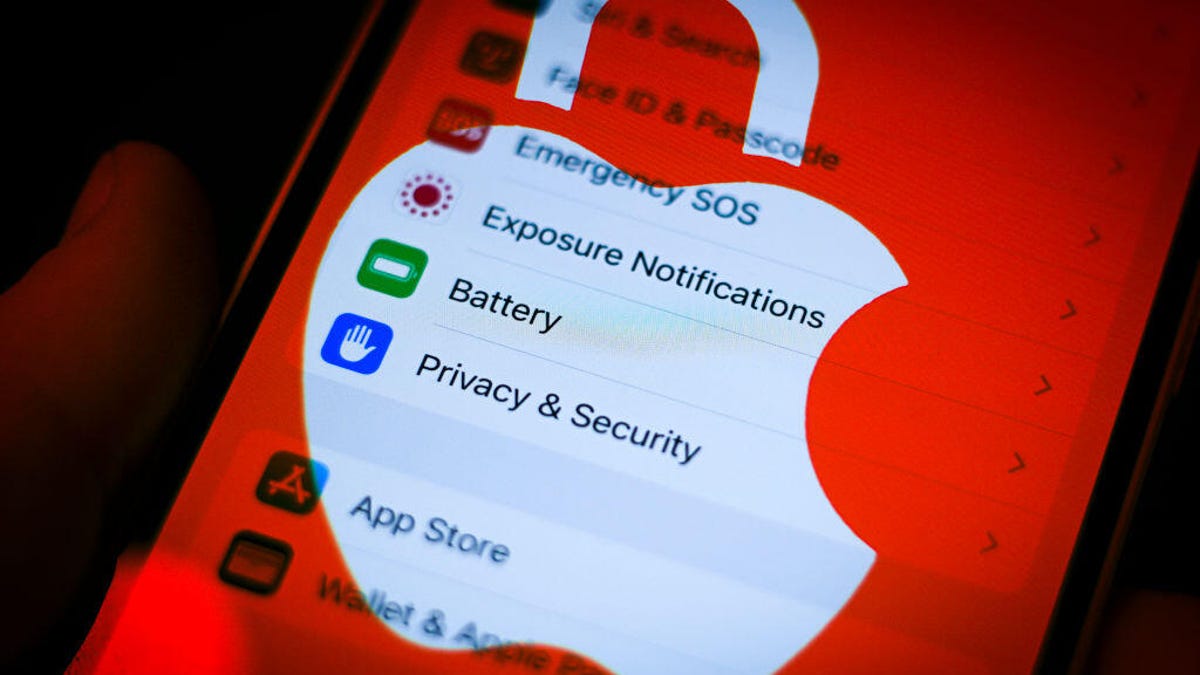
Understanding Contact Key Verification:
Contact Key Verification is not just another iOS update; it’s a crucial security measure aimed at safeguarding individuals, particularly those in sensitive positions such as journalists, activists, and government officials. By verifying the identity of the person you’re communicating with, this feature adds an extra layer of protection against impersonation and phishing attempts.
Activating Contact Key Verification:
Enabling Contact Key Verification on your iPhone is a straightforward process. Follow these simple steps to activate the feature:
- Open Settings: Access your iPhone’s settings menu.
- Tap Your Apple ID: Locate and tap on your Apple ID, typically displayed at the top of the settings screen.
- Navigate to Contact Key Verification: Scroll down and select the option labeled “Contact Key Verification.”
- Toggle Verification in iMessage: Switch on the toggle next to “Verification in iMessage.”
Once activated, you’ll be prompted with a brief explanation of Contact Key Verification. Tap “Continue” to proceed.
Sharing and Verifying Your Identity:
After enabling Contact Key Verification, you’ll have the option to share your public verification code with others. Follow these steps to generate and share your code:
- Access Verification Code: In the Contact Key Verification menu, select “Show Public Verification Code” to view your unique code.
- Copy Your Code: Tap “Copy Verification Code” to copy the code to your clipboard.
- Share Your Code: Paste the code into a message or share it online to allow others to verify your identity.
By sharing your verification code, you enable others to confirm that they’re communicating with the correct person, adding an extra layer of security to your conversations.
Verifying Identities in Messages:
Additionally, Contact Key Verification allows you to directly verify identities within the Messages app. Follow these steps to verify a contact’s identity:
- Open Messages: Launch the Messages app on your iPhone.
- Start a Conversation: Begin a conversation with the contact you wish to verify.
- Access Verification Options: Tap the contact’s name at the top of the conversation and select “Verify Contact.”
- Compare Codes: Compare the generated six-digit codes on both devices to ensure they match.
- Confirm or Reject: If the codes match, mark the contact as verified. If not, refrain from further communication until their identity is verified.
Conclusion:
As digital threats continue to evolve, it’s essential to take proactive measures to protect your privacy and security. With Contact Key Verification, Apple empowers users to verify the identities of their contacts, mitigating the risk of impersonation and fraud. By following these simple steps, you can activate this vital security feature and ensure secure communication on your iOS device. Stay vigilant, stay secure.
 Newspulse
Leave a comment